
Overview

This quick start shows how to set up and utilize Monite’s React UI SDK in your React or Next.js applications.

Before you begin

To follow this quickstart guide, ensure you have retrieved your credentials from the Monite partner portal. For more information, see Get your credentials.

1. Installation

To install the Monite React UI SDK, run:
npm install @monite/sdk-react

2. Authentication

Define your fetchToken function to retrieve your access tokens.
React.js
const fetchToken = async () => {
  const response = await fetch("https://api.sandbox.monite.com/v1/auth/token", {
    method: "POST",
    headers: {
      "Content-Type": "application/json",
      "x-monite-version": "2023-09-01",
    },
    // TODO: Replace the following fields with your Monite credentials
    body: JSON.stringify({
      grant_type: "entity_user",
      entity_user_id: "ENTITY_USER_ID",
      client_id: "CLIENT_ID",
      client_secret: "CLIENT_SECRET",
    }),
  });

  return response.json();
};
Monite does not recommend exposing the credentials of your fetchToken function on the client side as shown earlier. For security reasons, we recommend that all Monite tokens are generated from your server-side code.

3. Initialization

To initialize the Monite React UI SDK, create an object with the parameters as shown:
React.js
const moniteConfig = {
  apiUrl: "https://api.sandbox.monite.com/v1",
  entityId: "ENTITY_ID",
  fetchToken: fetchToken,
);
Then, import and utilize in the MoniteProvider wrapper as shown:
React.js
import { MoniteProvider } from "@monite/sdk-react";

function App() {
  return (
    <div className="App">
      <MoniteProvider monite={moniteConfig}>
        ...
      </MoniteProvider>
    </div>
  );
}

export default App;

4. Example: Create a counterpart

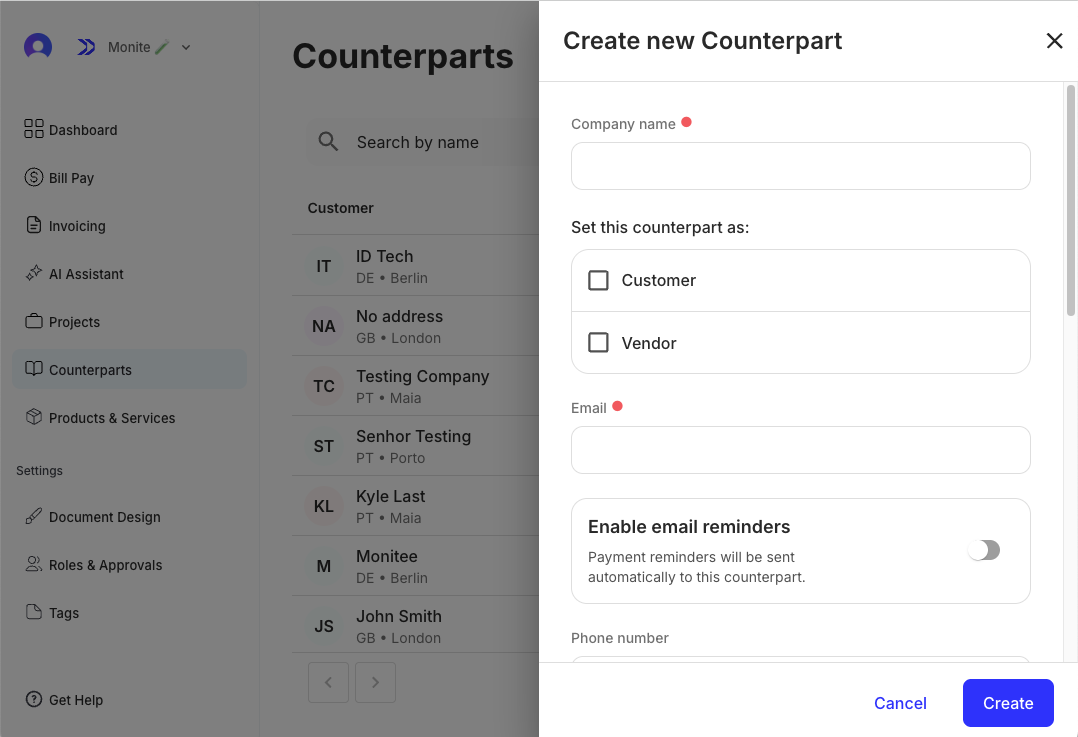
The CounterpartDetails component is used to create a new counterpart. When provided with the type prop, the component renders a modal for creating counterparts of type individual or organization. To create a counterpart, import and render the CounterpartDetails component as shown:
React.js
import { CounterpartDetails, Dialog } from "@monite/sdk-react";

function CounterpartModal() {
  return (
    <div className="counterparts-modal">
      <Dialog open alignDialog="right">
        // `type` value could be `individual` or `organization`
        <CounterpartDetails type="organization" />
      </Dialog>
    </div>
  );
}

export default CounterpartModal;
CounterpartDetails component with the 'type' prop provided

5. Example: View counterpart details

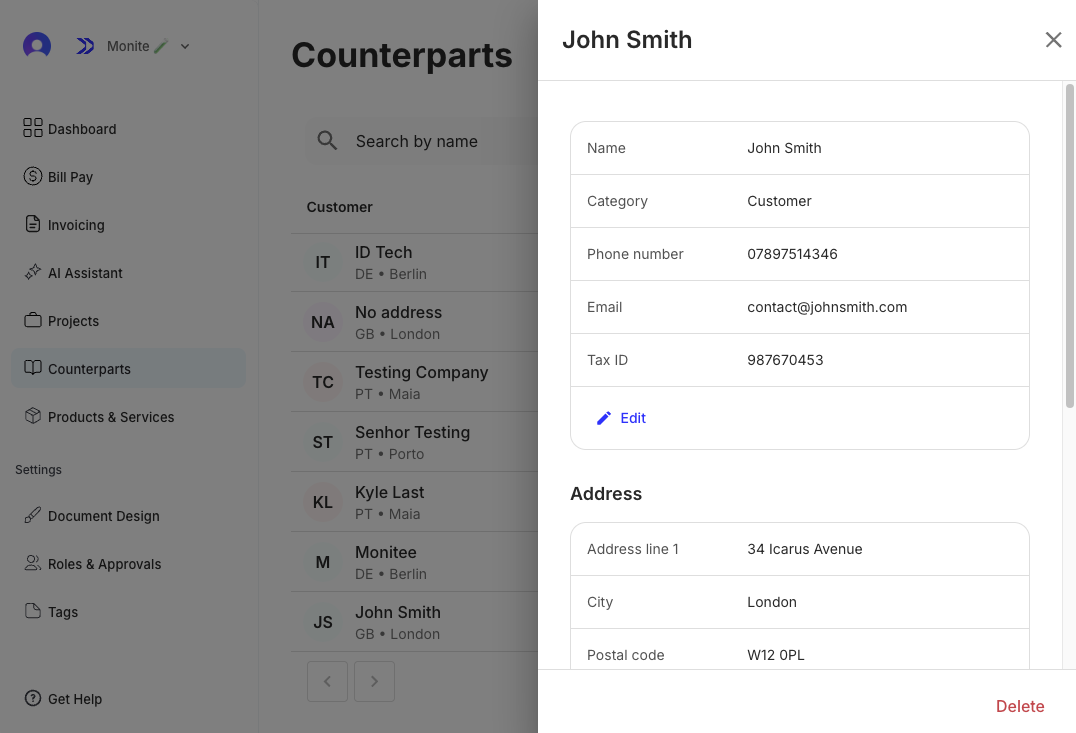
To view counterpart details, use the CounterpartDetails component and provide the counterpart ID to the id prop as shown:
React.js
import { CounterpartDetails, Dialog } from "@monite/sdk-react";

function CounterpartModal() {
  return (
    <div className="counterparts-modal">
      <Dialog open alignDialog="right">
        <CounterpartDetails id="COUNTERPART_ID" />
      </Dialog>
    </div>
  );
}

export default CounterpartModal;
CounterpartDetails component with counterpart ID provided
For more information on Monite’s React UI components, see React UI components.

Next steps

By completing this quickstart, you have learned how to:
  • Install and initialize Monite React UI SDK package.
  • Create a counterpart using the CounterpartDetails component.
  • View counterpart details using the CounterpartDetails component.
Next, you can generate and issue receivable to the counterpart via the Monite React UI SDK. For more information on the Monite React UI SDK, see React UI components.